 EdgeControl
Download for Mac
Right there in your menu bar.
Adjust volume and brightness, open your hotspot map, or pause gestures for a moment.
MADE FOR MAC A NEW SIDE TO YOUR TRACKPAD
A little slide. A quick tap. A smoother day.
Bring volume, brightness, music, and apps
right to your fingertips.
macOS 26+ · Built-in & Magic Trackpad
THE INTERACTIVE PLAYGROUND
Some things make more sense when you try them.
Choose a gesture, then give it a go.
Slide up to brighten your display. Slide down to soften it. Your screen, set to the moment.
An interactive illustration.
Your Mac settings stay unchanged.
YOUR TRACKPAD. YOUR RULES.
Your app menu, in your system appearance.
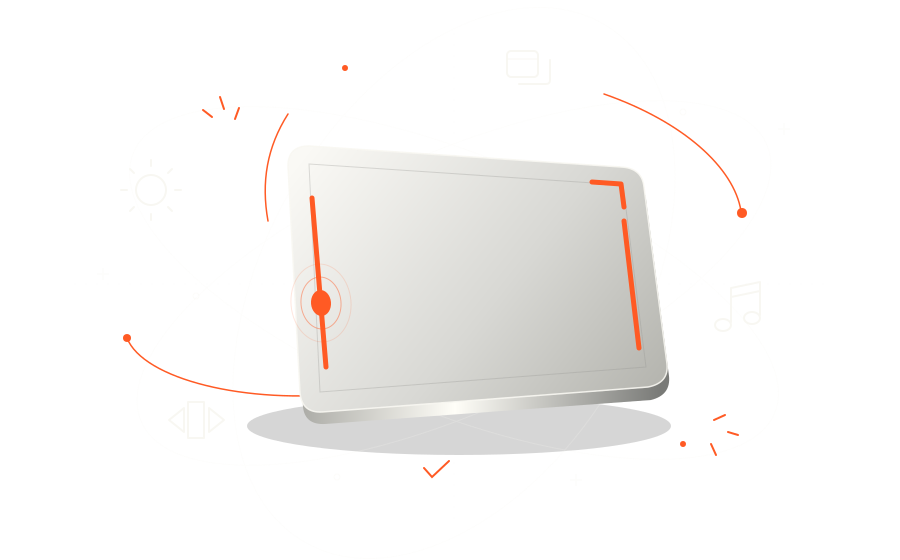
Click a hotspot in the trackpad to see how setup works.

Actual app menu · Matches your system appearance
Click an edge or a plus in the image to explore its action guide. Set your own hotspots in EdgeControl on your Mac.
In EdgeControl, slide one finger up or down along this edge.
In the Mac app, choose Tap, Double tap, or Click to activate your corner shortcuts.
Click a hotspot in the app image to explore its action guide.
LESS FRICTION. MORE FLOW.
Keep your focus on what matters.
Let your fingertips handle the little things.
SMALL APP. THOUGHTFUL DETAILS.
Native controls, a quiet menu bar home,
and just enough customization.
Adjust volume and brightness, open your hotspot map, or pause gestures for a moment.
Set edge width and sensitivity. Add optional haptic ticks on a compatible trackpad.
Freeze the pointer while you use an edge, so a quick adjustment keeps you in your flow.
A Mac running macOS 26 or later and a built-in trackpad or supported Magic Trackpad. EdgeControl is designed around trackpad gestures; Magic Mouse is not supported.
You have four edges and four corners. Volume and display brightness work on the left and right edges. Keyboard brightness and App Switcher work on any edge. Previous App, mute, and music actions can go on edges or corners. You can leave a zone off, too.
Previous App takes you back to the last app with a corner tap by default. For the full App Switcher, assign it to an edge: slide to browse, lift your finger, then tap to switch.
Download the DMG, open it, and drag EdgeControl into Applications. Launch EdgeControl from Applications, then follow setup to grant the permissions its gestures need. After setup, EdgeControl lives in your menu bar.
Setup guides you through system event and Accessibility access for system controls, app switching, cursor freeze, and click handling. Permissions can be reviewed in macOS System Settings.
Usage analytics through TelemetryDeck and crash reports and sampled performance timings through Sentry are enabled by default. You can turn either off independently in EdgeControl Settings → Privacy. Typed characters, raw touch positions, and the apps you use are excluded.
Display brightness needs an active built-in display, and keyboard brightness needs a built-in backlit keyboard. Bright ambient light may keep the keyboard backlight off. Some audio outputs do not offer adjustable volume or mute.
A LITTLE GESTURE. A LOT OF CONTROL.